Setup Guide
This guide walks you through the complete setup process to connect your Salesforce org with aprity. Follow the steps in order from start to finish.
Prerequisites
Before you begin, make sure you have:
- A Salesforce org (Production, Sandbox, or Developer Edition)
- System Administrator access
- An activation code provided by aprity (included in your welcome email)
Step 1: Install the package
Install the aprity managed package using the installation link provided by aprity (via email or your account manager).
During installation, Salesforce will ask you to grant access to third-party websites (api.aprity.ai and cdn.aprity.ai). Click Yes, grant access to proceed.
For detailed installation instructions, see Installing the Managed Package.
Step 2: Assign permission set
- Go to Setup > Permission Sets.
- Find "aprity Admin" and click on it.
- Click Manage Assignments > Add Assignment.
- Select your user and click Assign.
Assign this to the integration user as well -- the account whose username you enter in step 7. The permission set grants access to the aprity objects and Apex classes; the profile you add in step 5 pre-authorizes the JWT flow. Both are required.
Step 3: Register your organization
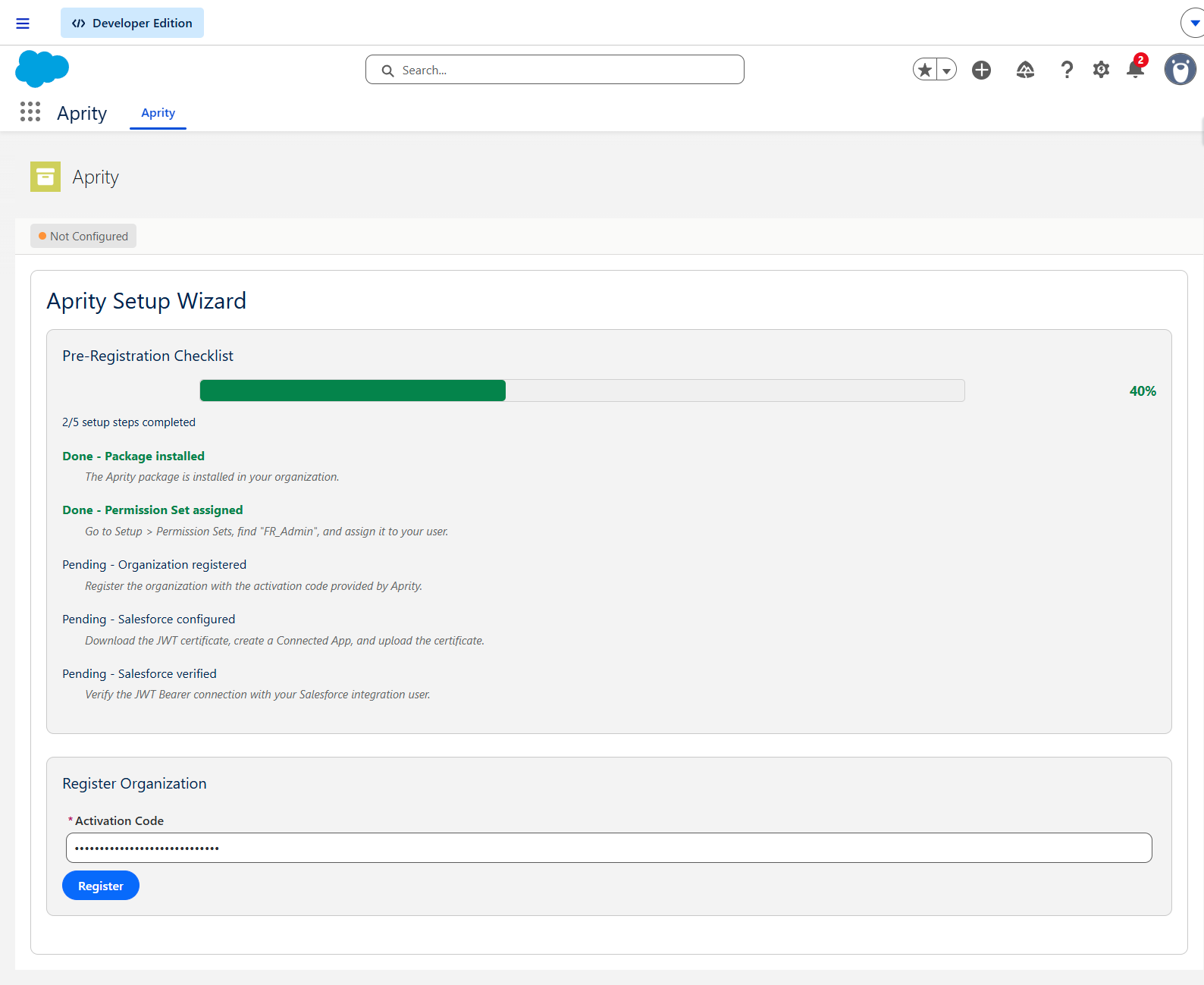
- Open the Aprity app from the App Launcher.
- The Setup Wizard appears with a pre-registration checklist.
- Enter the activation code provided by aprity.
- Click Register.
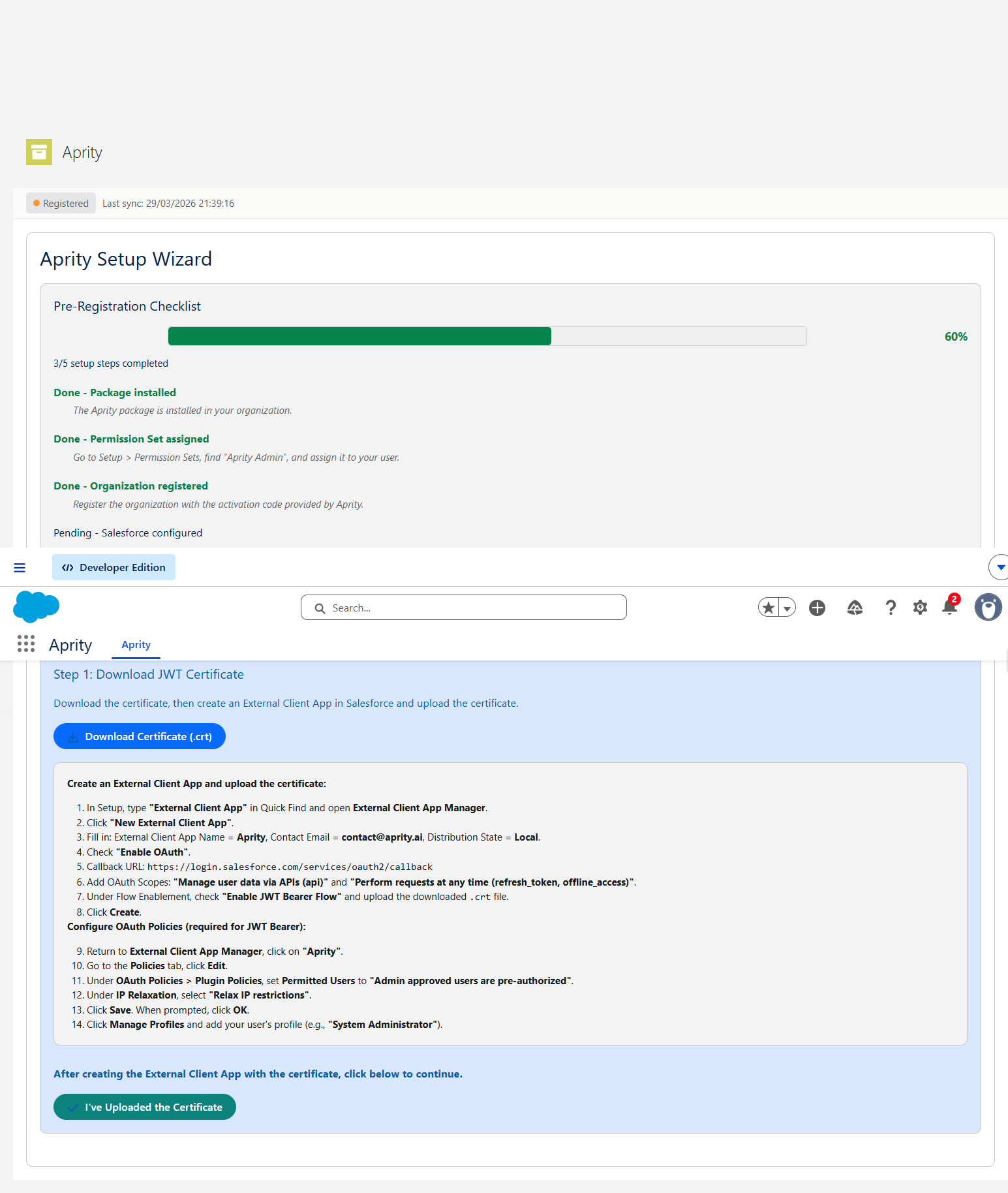
Step 4: Create an External Client App
4.1 Download the certificate first
In the aprity Setup Wizard, click "Download Certificate (.crt)" to save the aprity JWT certificate to your computer.
:::warning Do this before you open the create form
The certificate is mandatory on the creation form: as soon as you check Enable JWT Bearer Flow, Salesforce shows a Certificate Upload field and refuses to create the app until a file is attached. If you start the form without the .crt on disk you will have to abandon it and start over.
:::
4.2 Create the app
-
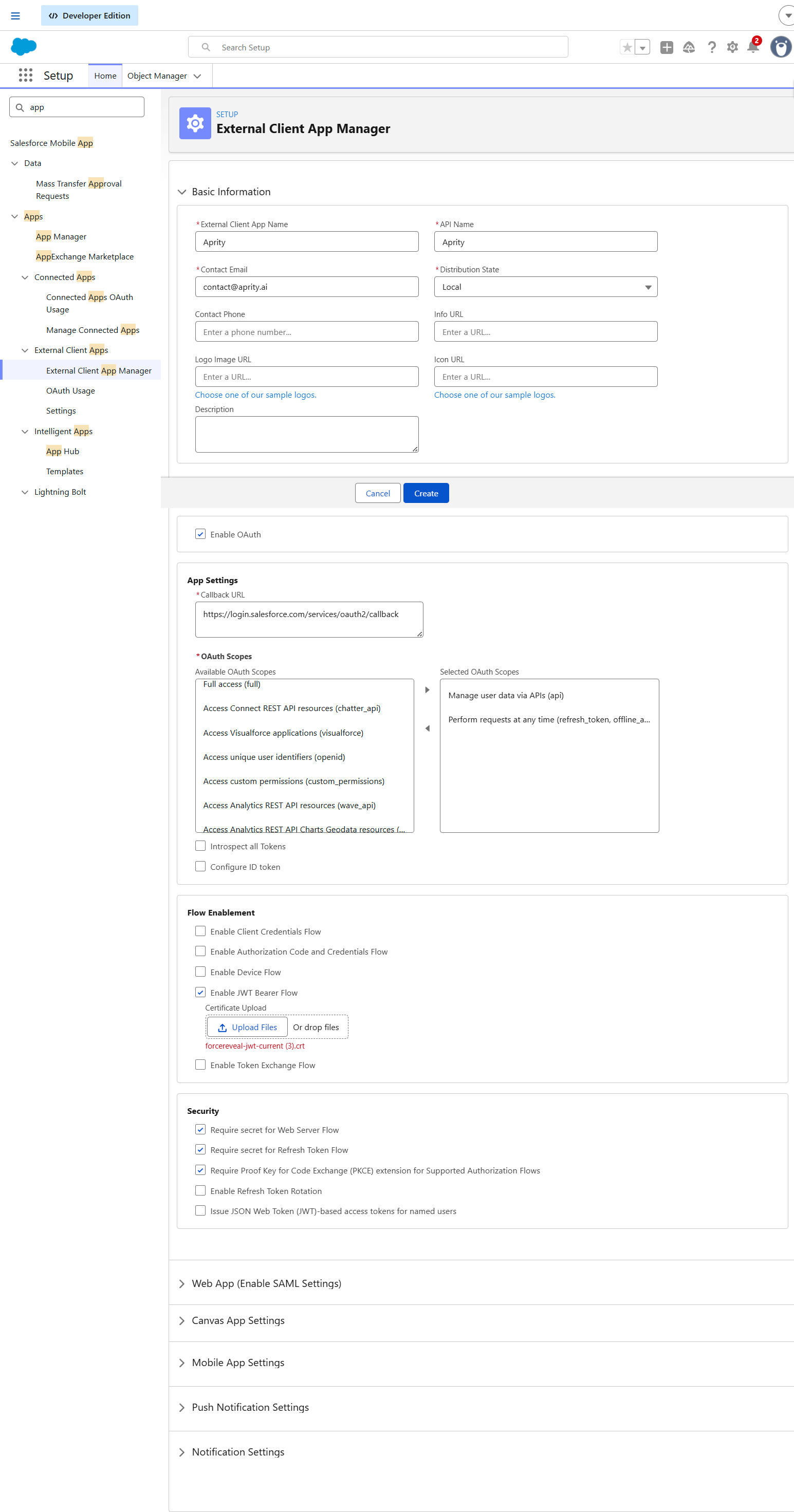
In Salesforce Setup, type "External Client App" in Quick Find and open External Client App Manager.
-
Click "New External Client App" (top right).
-
Under Basic Information, fill in:
- External Client App Name:
aprity - API Name:
aprity(auto-filled from the name) - Contact Email:
contact@aprity.ai - Distribution State:
Local(already the default)
- External Client App Name:
-
Expand the API (Enable OAuth Settings) section, then check Enable OAuth. The rest of the OAuth fields only appear once this box is checked.
-
In App Settings, set the Callback URL. The field is a multi-line text area — put one URL per line:
https://login.salesforce.com/services/oauth2/callbackIf you plan to enable the aprity web portal for your end users, add the second line now (adding it later means editing the app again):
https://login.salesforce.com/services/oauth2/callbackhttps://api.aprity.ai/v1/portal/auth/sf/callback -
OAuth Scopes is a two-list picker: select entries in Available OAuth Scopes and click the ▶ button to move them to Selected OAuth Scopes. You can
Ctrl/Cmd-click to select several at once.Required for the backend metadata connection:
- Manage user data via APIs (api)
- Perform requests at any time (refresh_token, offline_access)
Additionally required only if you enable the aprity portal:
- Access the identity URL service (id, profile, email, address, phone)
- Access unique user identifiers (openid)
:::caution Scope labels are not what you might expect In External Client Apps,
openidis the code behind "Access unique user identifiers", not behind "Access the identity URL service". And there is no standalone "Access basic information (email)" entry —emailandprofileare bundled into "Access the identity URL service (id, profile, email, address, phone)". Match on the exact label text above, not on the scope code. ::: -
Under Flow Enablement, check Enable JWT Bearer Flow. A Certificate Upload box appears — upload the
.crtfile from step 4.1 (drag-and-drop works too). -
Under Security, three boxes are checked by default: Require secret for Web Server Flow, Require secret for Refresh Token Flow, and Require Proof Key for Code Exchange (PKCE).
- JWT Bearer only (no portal): leave all three as they are.
- Portal enabled: uncheck Require secret for Web Server Flow and Require secret for Refresh Token Flow, and leave PKCE checked. The portal is a public client authenticated by PKCE, with no client secret. If either secret box stays checked, portal login fails at the token exchange. This has no effect on JWT Bearer, which authenticates with the certificate.
-
Click Create.
Step 5: Configure OAuth Policies
Required: These settings are mandatory for JWT Bearer authentication. Without them, verification will fail.
-
Open External Client App Manager and locate aprity in the list.
-
Open the row actions menu at the far right, then select Modify Policies. Salesforce opens the policy editor.
-
Expand OAuth Policies. Under Plugin Policies, set Permitted Users to "Admin approved users are pre-authorized".
-
Salesforce immediately opens a "Confirm permitted user policy" dialog warning that current users will lose access. Click OK.
:::info Order matters here Setting Permitted Users is what makes the Select Profiles and Select Permission Sets pickers appear under App Policies. Before this step, App Policies contains only a Start Page field — so there is nothing to assign yet. Do step 3 before step 5. :::
-
Scroll back up to App Policies. In the Select Profiles two-list picker, move the integration user's profile from Available Profiles to Selected Profiles using the ▶ button.
:::warning Look up the actual profile — do not assume This must be the profile your integration user actually has, which is often a custom profile specific to your org rather than the standard System Administrator. Check it first in Setup > Users, find the user whose username you will enter in step 7, and read its Profile column. Picking the wrong profile is the most common cause of a failed verification, and the error message does not tell you which profile was missing. :::
If you are enabling the portal, also move the profiles of the end users who will log in (e.g., Standard User). Adding a profile here does not by itself grant portal access — the portal role is enforced separately by the Aprity_User / Aprity_Admin permission sets.
-
Back under OAuth Policies > App Authorization, set IP Relaxation to "Relax IP restrictions".
-
Click Save.
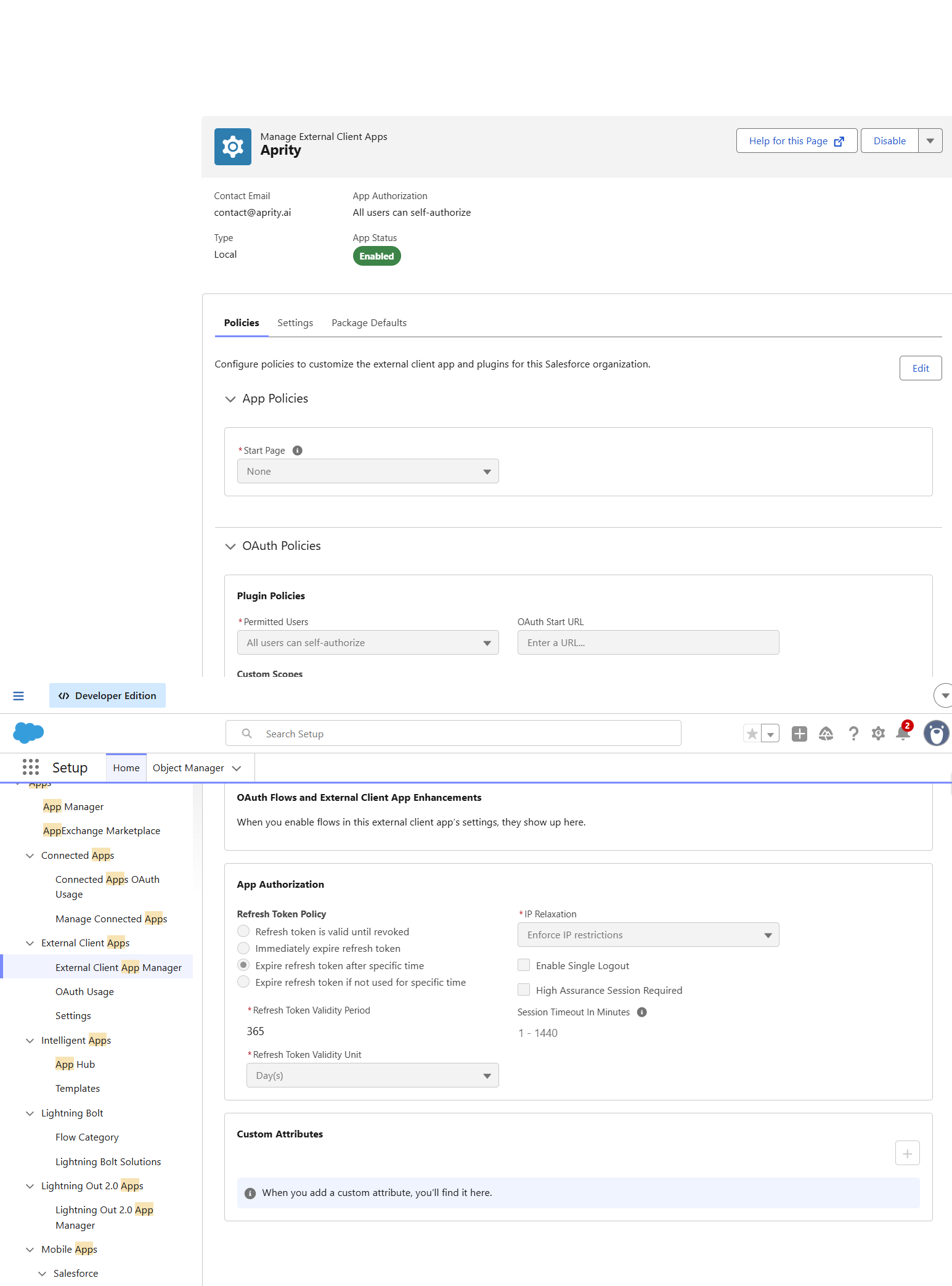
Important: The integration user's profile must appear in Selected Profiles. This authorizes the aprity backend to authenticate via JWT Bearer on behalf of that user. Without it, verification fails with "user hasn't approved this consumer".
Step 6: Copy the Consumer Key
- In Salesforce Setup, open External Client App Manager.
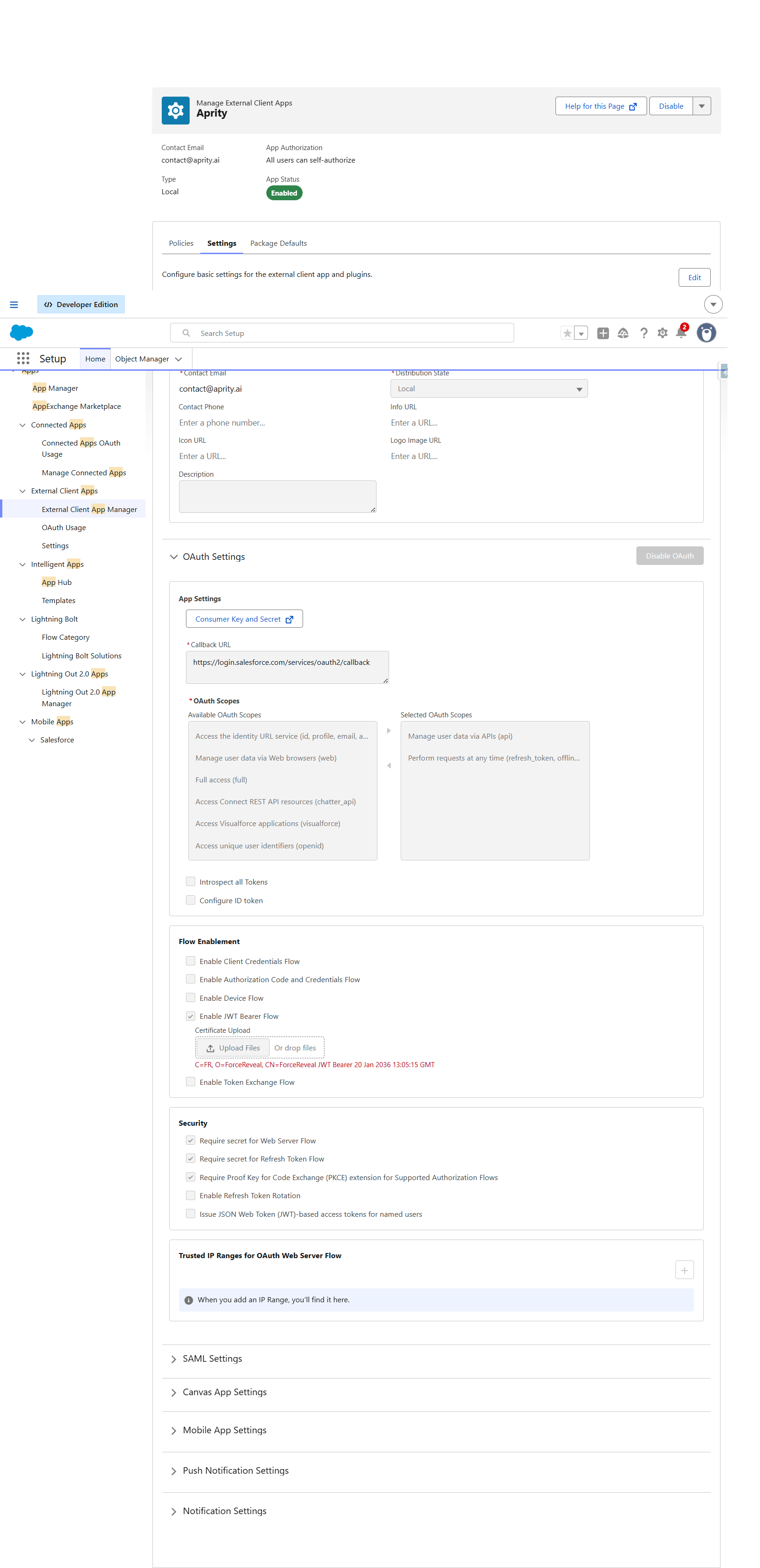
- Locate aprity, open the row actions menu at the far right, then select Modify Settings.
- Expand OAuth Settings. In the App Settings block, click the "Consumer Key and Secret" button.
- Salesforce may ask you to verify your identity -- if so, enter the code emailed to you. Depending on your org's identity-verification settings and how recently you authenticated, this prompt may not appear at all; that is normal, not a sign something went wrong.
- Copy the Consumer Key value.
- Return to the aprity app and paste it in the Consumer Key field.
:::info Consumer Secret is not needed aprity never uses the Consumer Secret. JWT Bearer authenticates with the certificate, and the portal uses PKCE. Copy the key only. :::
:::tip Need to change OAuth settings later? Everything from step 4 -- callback URLs, scopes, Flow Enablement, Security -- is available through the Modify Settings row action, under OAuth Settings and behind the Edit button. Policies are edited separately through Modify Policies (step 5). :::
Step 7: Configure and verify
- Enter the Salesforce Username of the integration user (e.g.,
admin@yourcompany.com). This is the username shown in Setup > Users. - The login URL is auto-detected. If auto-detection fails, you will be prompted to enter your My Domain URL manually.
- Click "Configure & Verify".
Success: When verification succeeds, you will see a green banner with your Salesforce instance URL. All setup steps should show as completed.
You are all set! Navigate to the Configuration tab to start your first metadata analysis. See Running Your First Scan for next steps.